How to transfer domains away from GoDaddy
It’s Super Bowl Sunday, a day I particularly enjoy transferring domain names out of GoDaddy, the registrar that once tempted me with low prices but now mostly just annoys me. Here’s how to move your domains to a new registrar quickly, easily and without fouling anything up (you don’t want your website to disappear!) in the process.
Aside: I happen to be transferring domains to Dreamhost, a web hosting company I’ve been using for many years that offers great pro features at good value. If you’re looking to park a bazillion domains, that’s not what they’re really for, but for hosting small- to mid-traffic sites, I totally recommend them. One thing that’s nice is that they anonymize your domain record for free, so your name and address aren’t crawled by a million spiders (many registrars like the aforementioned GoDaddy charge extra for “privacy”). If you’re transferring to a new registrar that’s not Dreamhost, don’t worry, these are generic directions and all about how to transfer away from GoDaddy.
1. Make sure your domain is at least 90 days old
GoDaddy fabulously won’t let you transfer a domain name you just registered. (OK, there are some ICANN regulations at work, too.) Of course, if you’re about saving money, you’ll probably wait until your domain is close to expiring before you transfer it — you’ve already paid your year’s rent.
2. Change your GoDaddy settings and get your auth code
In the GoDaddy Domain Manager, find the domain you want to transfer and click its lock icon to unlock it (if it’s already unlocked, you can just click on the domain name to manage the domain). Here’s what I’m talking about (click the screenshot to see it full size):
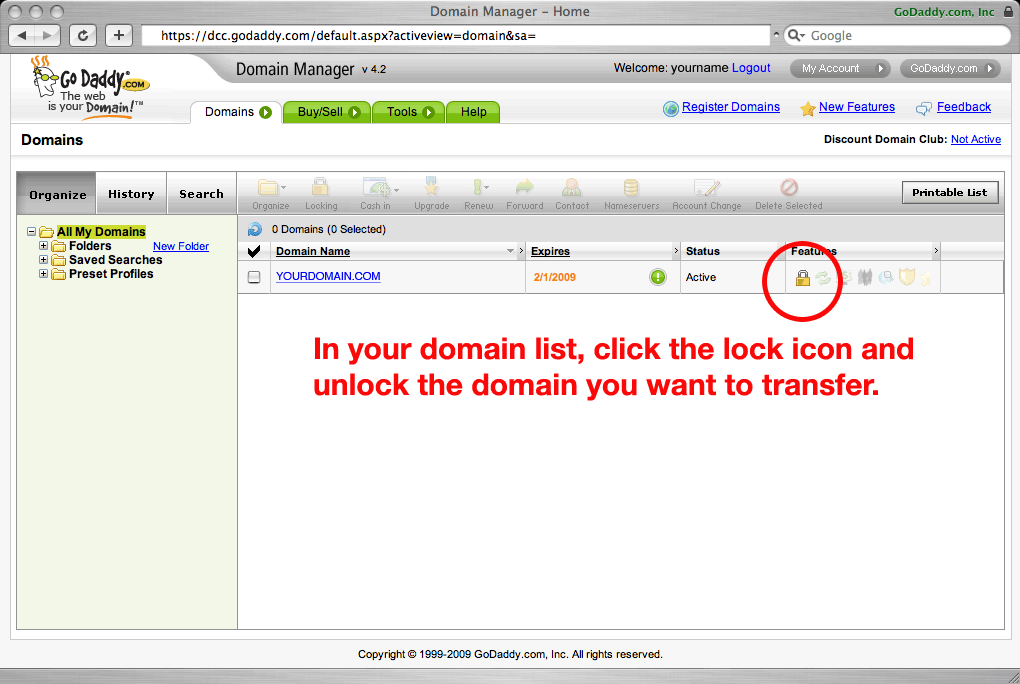
Now you should be in the domain’s detail screen:

- Make sure that “Privacy” and “Domain Ownership Protection” are Off and that the domain is unlocked (if you just did this, it will still show up as “Locked” as in the screenshot, but don’t worry, if you just unlocked it, then it’s unlocked).
- Make sure your email address is correct in the administrative contact, because GoDaddy will be emailing your transfer authorization code (Email!?!?! What is this, 1995? @%&*$#@ GoDaddy!)
- DNS settings: Chances are, you’re using GoDaddy’s free DNS service, as shown in the screenshot (
ns23.domaincontrol.commeans GoDaddy). If you’re already using your own or some other 3rd party DNS servers, you don’t need to do anything and can skip to step 4.The important thing to know here is that this setting is part of your domain record, and will transfer over to the new registrar (i.e, it won’t automagically switch to your new registrar’s DNS servers, because there’s nothing about being a domain host that says you also provide DNS), so if you are using GoDaddy’s servers you need to change these now, before you transfer the domain! If you’re using GoDaddy’s DNS and you transfer the domain with the record still pointing to
ns.domaincontrol.com, then your site will go dark becausens.domaincontrol.comwill start telling folks it’s never heard of your domain.So, if you’re using GoDaddy’s free DNS service, here’s what you need to do:
- Easy: If you’ve just got a parked domain or you’re only using the domain name for a website — you only care about
example.comandwww.example.com(and you’re not using subdomains likemail.example.comfor your email) — just change these to your new registrar or DNS host’s nameservers. For Dreamhost, these arens1.dreamhost.comandns2.dreamhost.com. - Hard: If you do have special DNS records (like
mail.example.comor ones you’ve manually created), you need to load these into your new registrar/DNS host before you change the nameservers. Unfortunately, some big registrars like Network Solutions have crappy systems and won’t let you start setting DNS records on a domain until after you’ve transferred the domain — so if you’re in a situation like this you can either half-ass it and just live with a few hours of downtime while you scurry to reinput your DNS records, or you can use a “real” DNS host like UltraDNS or run your own DNS (which you could just do temporarily — just for a few days and then change nameservers to your new registrar’s free DNS once you’re registered with them). Anyway, once you’ve got your special DNS records set up with your new nameservers (or have decided to half-ass it), follow the directions above in “Easy” to update your domain record with the new nameservers.
- Easy: If you’ve just got a parked domain or you’re only using the domain name for a website — you only care about
- Click “Send by Email” and GoDaddy will email you the transfer authorization code you need to give to your new registrar
3. Transfer the name into your new registrar
Your new domain name registrar’s website will walk you through this. You’ll need to give them the auth code that GoDaddy just sent you.
Once your new registrar has verified the auth code with GoDaddy, it may ask you to confirm the transfer. Dreamhost usually does the verification in a few seconds, then sends you an email with a link you have to click to confirm.
4. Wait (Or, go back to GoDaddy Domain Manager and confirm)
You’re done! After you complete the previous step, GoDaddy will send you an email written by someone barely proficient in English to say that the domain transfer is approved and the domain will automatically transfer over in 5 days.
So, you really don’t have to do anything more at this point, I promise. But if you’re totally OCD, you can go back to GoDaddy’s Domain Manager, select Pending Transfers, check the checkbox next to your name(s) and use the Accept/Decline button to Accept the transfer. Naturally, GoDaddy has intentionally worded this to confuse you, so on the confirmation screen I think you actually have to select “Cancel” as in “Cancel this domain from my GoDaddy account” to “Accept” the transfer. So, just don’t get caught by their trap and accidentally cancel the transfer, or you’ll really feel like an idiot.
heydi
July 2, 2009, 3:58 pm
If i disable privacy and domain ownership protection godaddy will put a lock of 60 days. It is a GoDaddy policy . Is that true?
Julia
Sept. 28, 2009, 7:28 am
Thank you. This post has been so helpful you don’t even know!
Maskil
Oct. 5, 2009, 5:30 am
Do I understand correctly that there’s no way to seamlessly/automatically migrate your DNS entries from your old domain name registrar to a new one (assuming they’re providing your DNS services as well, which I think applies to most)?
You could then theoretically have 3 separate providers for your domain; a domain name registrar, a DNS provider and a Web host provider?
p.s. Yours is the only tutorial I have come across so far that even touches on the issue of DNS when migrating to a new domain name registrar.
sticks
Oct. 9, 2009, 5:04 pm
The “correct” way to do it is to get the actual zone files from your current DNS server and load them into your new DNS server. Then, with identical zone files running on both new and old, you can change the domain record to point to the new nameserver with no bad side effects.
Another thing to do is to shorten your TTLs prior to changing DNS — that way, if there are any foul-ups, you can change back with minimal DNS-related outages around the net (because DNS resolvers around the Internet are only supposed to cache lookups for the TTL period before doing a fresh lookup from your authoritative server). Running your own DNS, you can lower the TTL to 1 minute if you want to.
But, I’ve never tried getting GoDaddy to give me zone files, or temporarily lower my TTL. I don’t know whether they’d do this for you, or how much of a support hassle it would be. I have done it with Network Solutions — once you get past the typical customer support hurdles, their support engineers are usually pretty helpful with stuff like this.
Your idea of using a 3rd party to host DNS is a good one — lots of people run their own DNS or use a dedicated 3rd party provider like UltraDNS for exactly this reason (also for redundancy, reliability and responsiveness reasons). I’ve done both of these (run BIND, also colo’ed a rack at a facility where UltraDNS was included). For a free solution, take a look at ZoneEdit — I’ve had clients who used them for years, a good cheap way to keep your DNS separate and reduce your lock-in to either a registrar or web host.
dumdum
Jan. 2, 2012, 10:07 pm
i’m a dumdum and can’t even read what your wrote without getting dizzy! what’s really scary: i’ve been reselling hosting for years (obviously not for much of a profit)! but i want to know how to run my own DNS…. any recommendations for a dummy like me for what to study first?
richard
April 27, 2010, 4:58 pm
thanks. i have been trying to figure out how to transfer my domains away from godaddy for a very long time. even though this post is kind of old, it got the job done. i appreciate the info
Pool
May 6, 2010, 9:46 pm
so my domain should be atleast 90 days old.
Rafael Raveau
Aug. 31, 2010, 7:52 am
Thanks!!
Leilehua
Oct. 9, 2010, 12:31 pm
Mahalo nui loa! Thank you very much! Oh, my gosh, it has been #%!! getting out of GoDaddy!!!!!!
Randy
Oct. 11, 2010, 2:44 pm
Wow – transferring from GoDaddy sucks more than their service… which is a lot! I just transferred 2 domains to NameSilo (best prices I’ve ever seen), and it took almost the entire day to figure out GoDaddy’s system! I did have to manually recreate my DNS records at the new registrar, but it was pretty easy. So glad I’m gone and will be transferring the rest of my domains as they expire. Good riddance!
someguy
Feb. 21, 2011, 4:41 am
“Of course, if you’re about saving money, you’ll probably wait until your domain is close to expiring before you transfer it — you’ve already paid your year’s rent.”
No need for this, your new registrar will *add* a year to your existing expiry date, so go ahead and transfer them all at once.
Bambi
March 30, 2011, 7:18 pm
Thank you very much for this information.After 7 long years I will be moving my 8 domains the hell outta GoSDaddy once and for all. One I cannot tolerate their predatory pushy sales/ads/constant emails trying to sell me things I do not want. Their EMAIL/WORKSPACE is the slowest and crappiest of any 30 or so I have encountered. I moved my main active domain to a blogspot I set up instead of paying them $190 bucks for Linux hosting. They may have been pissed because I called to check my forwarding and they actually set it to a big GoDaddy ad page for 5 days. Bu##shit. They are trying to sell the whole company as of mid 2010.
LASTLY and most importantly to me “Bob” the GoDaddy owner posted a video of himself with his foot up on an Elephant he shot in Zimbabwe. He can die in hell and shove his eroding biz up hi rear.Sorry this turned into a review of sorts. Any ideas on other registrars?
Some smart company should advertise a deal like “50% off for moving all your domains from GoDaddy to “____”.
sticks
March 30, 2011, 8:02 pm
Haha, your comment made me laugh so I thought I’d reply right away. We all get suckered into GoDaddy because of a big sale, but then after that you feel dirty every time you have to give them money. It doesn’t matter whether it’s their constant upselling, impossible-to-use website, customer lock-in, awful TV commercials or corporate practices, there’s something to piss off anyone. God forbid you get into a domain ownership or trademark dispute, they’ll drop you for whoever has the biggest wallet in no time flat. I didn’t know about Bob Parsons off trophy-hunting endangered elephants like it’s the 1880s until now, that’s pretty sick.
I linked Dreamhost above and they’re still who I use. They offer a lot more free built-in services than most shared hosting companies (like free private domain records) and have good customer support. Their web interface is like a calm breeze compared to GoDaddy’s billboard bazaar. If you need hosting, well they’re primarily a hosting company, so they have different levels of web hosting and email — you can also just link your domain name to Google and use gmail and Google Apps for everything (with your domain name of course). You can link as many domains as you want to one shared hosting account if that’s all you need. Domains are currently $9.95/year, which I think is pretty average for .coms these days, but if you’re parking a ton of domains you can find cheaper guys who specialize in that (especially for .biz and the like).
I don’t hold a lot of domains (I have like 10) so I don’t have any great tips for parking — talked to some developer friends recently about some of the cheaper alternatives like 1and1 and didn’t hear good things. Verio and Register.com have been around for ever, and unlike Netsol aren’t ridiculously expensive (not sure what’s happened with Register.com since their acquisition last year though).
steven
Aug. 4, 2011, 8:45 am
Thanks for the awesome instructions. Finally got my domains transferred away from Godaddy!
Kyle Brackin
Dec. 4, 2011, 9:45 pm
I’ve been using Dreamhost for years and can’t complain at ALL about them. I’d like to mention their customer support, but since they offer so many features and have pretty much zero issues, I haven’t had to even talk to their support yet. All in all, Dreamhost is the way to go for registering domains and hosting websites for them.
Don
Jan. 19, 2012, 1:38 pm
My problems with these idiots are immense but the current one is I am finally transferring all of my services and domains to a new host. I received 5 of 6 authorization codes and got them transferred. Of course the one that I am not receiving a code from is my business domain that actually has a website attached to it. I call their “support” (serious sarcasm using that term with anything related to hodaddy) and they can’t find any reason why I am not receiving my code nor can they manually send one. I would highly advise anyone, not to do a dime of business with these retards. Their customer service is worse than comcast if that’s possible.
Joseph
July 31, 2012, 8:25 am
Very helpful, thank you! I just had to xfer 4 domains from Go Daddy to Net Sol (unfortunately) and it worked out very well, although the screen shots are a little different 2 years later, I still figured it out. Cheers.